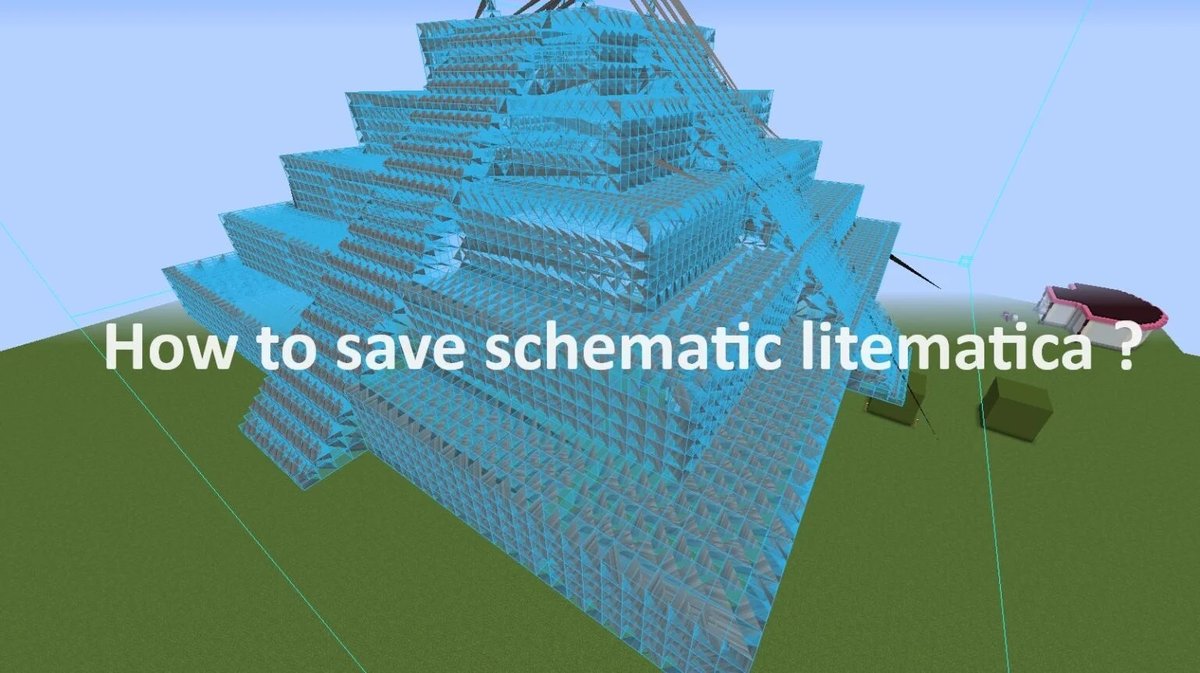
When your ambitious Minecraft building project grinds to a halt because Litematica isn't cooperating, it's more than just frustrating—it's a creative roadblock. Whether your schematics refuse to load, the Litematica stick seems to have vanished, or the menu won't even appear, you're not alone. Many players encounter these hiccups, and thankfully, most common Litematica issues have straightforward solutions. This guide cuts through the confusion, offering clear, actionable steps to get you back to building your dream creations.
It’s about understanding the core mechanics of Litematica and its interaction with Minecraft. Think of it like being a detective: we’ll systematically check the usual suspects, narrow down the possibilities, and pinpoint the fix. No more staring blankly at an empty world when a perfect schematic should be guiding your hand.
At a Glance: Quick Fixes for Common Litematica Problems
- Menu Not Opening: Try the comma (
,) key or check Mod Menu for 'M' keybind conflicts. - Litematica Stick Missing: Ensure you're holding the
minecraft:stickand Litematica is running. - Schematics Not Loading: Verify the
.litematicfile isn't corrupted, is in the correct folder, and your rendering settings are enabled. - EasyPlace Mode Malfunctions: Double-check your EasyPlace configuration and active selection.
- Crashes: Update Litematica/Fabric, check schematic names for invalid characters, and ensure sufficient memory for large builds.
- Installation Issues: Confirm Fabric Loader is installed, Litematica matches your Minecraft version, and consider a fresh reinstallation.
The Foundation: Is Litematica Even Running?
Before diving into complex troubleshooting, let’s ensure Litematica is actually installed and active. This might sound obvious, but it's often the first point of failure.
Confirming Litematica's Presence
Open Minecraft and press F3. Look for orange text in the top-left corner that mentions "Litematica." If you see it, great! Litematica is loaded. If it's absent, then your issue likely stems from installation, not a setting within the mod itself.
No Litematica text? Here’s what to check:
- Fabric Loader: Litematica relies on the Fabric mod loader. Ensure you have the correct Fabric version installed for your Minecraft client. Without Fabric, Litematica simply won't run.
- Mod Files: Verify that
litematica-fabric-<mc-version>-<mod-version>.jar(andmalilib-<mc-version>-<mod-version>.jar, which Litematica depends on) are directly in your Minecraft instance'smodsfolder. Double-check for typos or incorrect file placements. - Minecraft Version Match: Crucially, Litematica is version-specific. A Litematica file for Minecraft 1.19 won't work on 1.20, and vice versa. Always download the Litematica and malilib versions that precisely match your Minecraft client version.
- Fresh Installation: If you're still stuck, a clean reinstallation can often resolve hidden conflicts or corrupted files. As some users have found (Issue #722), simply redownloading Litematica directly from sources like the CurseForge app can miraculously fix persistent menu access issues. Delete the old
.jarfiles from yourmodsfolder, then download and place fresh copies.
Decoding Keybinds and Menu Access Woes
The most common complaints often revolve around not being able to open the Litematica menu or activate its primary tools.
"My Litematica Menu Won't Open!"
You press 'M', but nothing happens. This is a classic.
Common causes and fixes:
- The Default Key: While 'M' is the widely known default, Litematica's menu key might have changed or been rebound. The comma (
,) key is another common default or alternative. Try pressing,first. - Keybind Conflicts: Another mod or even Minecraft itself might be using 'M' (or
,) for a different function, overriding Litematica's command. - Solution: Access your Mod Menu (often bound to 'ESC' > 'Mod Menu' or 'Right Shift'). Navigate to Litematica's configuration options. Here, you can find and reassign the hotkey for "Open Litematica Main Menu." Choose a key you know isn't used by anything else.
- Litematica Not Running (Again): If the
F3screen doesn't show Litematica text, then the mod isn't loaded, and naturally, its menu won't open. Revisit the installation checks above.
The Elusive Litematica Stick: Why It's Not Working
You've got your stick, you right-click, you left-click, but no selection box appears. Reports like Issues #1072 and #1047 frequently pop up, indicating this is a widespread concern.
Here's how to troubleshoot it:
- The Correct Stick: Litematica uses a standard
minecraft:stickas its primary tool. Make sure you're holding that exact item, not a modded stick or another tool. - Mode Activation: The Litematica stick's functions (selecting areas, moving schematics, etc.) depend on which Litematica mode is active.
- Open the Litematica menu (default 'M' or ',').
- Go to "Configuration Menu" > "Hotkeys."
- Look for hotkeys related to "Tool Mode." Ensure you know how to cycle through modes (e.g., "Placement Selection," "Schematic Placement").
- When in "Placement Selection" mode, the stick allows you to define a selection box. Right-click to set the first corner, left-click to set the second.
- Keybind Conflicts (Again): Just like the menu key, the stick's interaction keys might be conflicting. Check the Litematica hotkeys for "Use Tool" (right-click) and "Attack/Destroy" (left-click) while the stick is in your hand.
- Active Placement: If you're trying to use the stick to manipulate an existing loaded schematic, ensure you have a schematic placement loaded and selected in the Litematica menu. The stick will interact with the currently active placement.
Schematic Sagas: Loading, Rendering, and Display Issues
You've got Litematica running, your menu opens, but your beautiful schematic is nowhere to be seen. This can be particularly disheartening.
Schematics Not Appearing or Displaying Blocks
Reports like Issues #1065, #1062, and #1049 highlight the frustration of invisible or incomplete schematics.
Follow these steps to bring your builds into view:
- Loading the Schematic:
- Open the Litematica menu (M or ,).
- Go to "Load Schematics."
- Verify your schematic (
.litematicfile) is listed. If not, ensure it's in the correctschematicsfolder within your Minecraft instance. - Click "Load Schematic" next to its name.
- Creating a Placement: Loading the schematic isn't enough; you need to create a "placement" of it in your world.
- After loading, navigate to "Manage Placements."
- Select your loaded schematic and click "Create New Placement."
- Give it a name and confirm.
- Enabling Rendering: This is a crucial, often overlooked step.
- In "Manage Placements," select your new placement.
- Ensure "Enable Rendering" is toggled ON.
- Also, check "Show Highlight" to ensure the selection box is visible.
- Placement Visibility Settings:
- Go to "Placement Config."
- Check "Rendering Mode." Common modes are "Normal," "Faded," or "Lined." If it's set to "None" or an invisible mode, you won't see anything. "Normal" is usually best for visibility.
- Adjust the "Render Distance" to ensure the schematic is within your viewing range.
- Check "Render Range Min/Max" for the XYZ coordinates. If your schematic is outside these boundaries, it won't render. Resetting these to default or expanding them can help.
- Corrupted or Problematic Schematic Files:
- Invalid Characters: A major cause of crashes and loading failures (Issue #1039) is having special characters, like question marks (?), in schematic names. Stick to alphanumeric characters, hyphens, and underscores.
- Legacy Formats: Very old
.schematicfiles (from mods like Schematica) might not be fully compatible or could cause issues. Litematica primarily uses its own.litematicformat. If you have an old file, try converting it using an external tool or simply recreating it if possible. - Broken Files: Sometimes, a schematic file itself can be corrupted, perhaps from an improper save or transfer. Try loading a different, known-good schematic to isolate if the problem is with Litematica generally or that specific file.
- For deeper dives into managing your creations, including how to efficiently paste Litematica schematics, ensuring your files are correctly prepared is key.
Navigating EasyPlace and Material List Glitches
Litematica’s quality-of-life features like EasyPlace and the Material List can streamline your building process, but they sometimes have their own quirks.
EasyPlace Mode Acting Up
If EasyPlace isn't placing blocks, suggesting the wrong ones, or behaving erratically (Issues #1054, #1052), here’s what to investigate:
- EasyPlace Activation:
- First, ensure EasyPlace mode is actually enabled. Open the Litematica menu, go to "Manage Placements," select your active schematic, and verify "EasyPlace mode enabled" is toggled ON.
- Also check your hotkeys for "Toggle EasyPlace mode."
- Selection and Placement Rules:
- EasyPlace works within the boundaries of your active schematic placement. Ensure you are attempting to place blocks within the schematic's footprint.
- Check your "EasyPlace Rules" in the Litematica configuration. You might have filters enabled that prevent certain blocks from being suggested or placed.
- Inventory & Block Availability: EasyPlace can only suggest and facilitate placing blocks that are available in your inventory. If you’re missing a required block, it won’t prompt you to place it.
- Tool Mode: Ensure your Litematica tool (the stick) isn't in a conflicting mode. While EasyPlace is largely passive, ensuring your tool isn't actively trying to make a selection could sometimes help.
Material List Freezes or Unloads
Users sometimes report the material list acting strangely, either freezing the game or completely unloading (Issues #1042, #1035).
- Performance Overload:
- Very large schematics with millions of blocks can strain your system when calculating the material list. This is particularly true for older or less powerful PCs.
- Solution: Try reducing the "Render Distance" for the schematic, or temporarily disabling other resource-intensive mods.
- Mod Conflicts: Another mod might be interfering with Litematica's ability to process and display the material list correctly.
- Solution: Perform a conflict test: disable other mods one by one to see if the problem resolves. Start with any mods that also interact with inventory, rendering, or performance.
- Litematica Updates: Bugs causing such freezes are often patched. Ensure both Litematica and malilib are fully updated to their latest versions for your Minecraft client.
- JVM Arguments / Memory: Ensure your Minecraft client has sufficient RAM allocated. For large projects, the default allocation might not be enough. Increase your JVM arguments for
-Xmx(e.g., to4Gor6G).
Tackling Crashes and Performance Headaches
Crashes are the most disruptive issues, often leading to lost progress. Litematica can trigger them, especially with complex operations or specific environmental factors.
Unexpected Crashes: Identifying the Culprit
Multiple reports point to various crash scenarios: saving large schematics (Issue #1069), specific entity rendering (Issue #1038), or problematic schematic names (Issue #1039).
- Saving Large Schematics (Minecraft 1.21.11 and up):
- Problem: Attempting to save extremely large or complex Litematics can overwhelm Minecraft's memory or save routines, leading to crashes. This is especially true as Minecraft versions evolve and potentially introduce new memory handling.
- Solution:
- Allocate More RAM: Increase your JVM arguments for Minecraft (e.g.,
-Xmx6Gfor 6 Gigabytes). - Chunk It Down: If possible, save your massive build in smaller, manageable sections. You can then combine these sections later if needed.
- Check for Obscure Blocks/Entities: Very rare or modded blocks/entities might cause issues if Litematica struggles to serialize them correctly.
- Update: Ensure Litematica and malilib are the latest versions for your specific Minecraft release, as performance optimizations and bug fixes are continuously released.
- 'Question Mark' in Schematic Names:
- Problem: As seen in Issue #1039, using illegal characters (like '?') in your schematic filenames can lead to crashes when attempting to load or save. The file system or Litematica's parsing might simply not handle them.
- Solution: Always use alphanumeric characters, hyphens, and underscores for schematic filenames. Avoid special symbols.
- Rendering Specific Entities (e.g., Mannequin Entity in Minecraft 1.21.9):
- Problem: Some entities, particularly those introduced in new Minecraft versions or from other mods, can cause rendering conflicts with Litematica, leading to crashes (Issue #1038).
- Solution:
- Disable Entity Rendering: In Litematica's configuration, look for options to disable rendering of specific entities or all entities within schematics.
- Update Mods: This is often a bug that gets patched. Ensure all your mods, especially Litematica and any mods adding problematic entities, are up to date.
- Isolate: If you suspect a specific entity or another mod, try temporarily removing that mod to confirm the conflict.
- General Mod Conflicts: Many crashes stem from two or more mods trying to do conflicting things.
- Debugging: The best approach is the scientific method: remove half your mods, see if it fixes it. If yes, the problem is in the removed half. If no, the problem is in the remaining half. Repeat until you isolate the culprit. Always start by removing recently added mods.
Advanced Tips & Best Practices for a Smooth Workflow
Moving beyond reactive troubleshooting, these proactive measures can prevent issues and enhance your Litematica experience.
Keeping Your Mods Updated
This can't be stressed enough. Developers are constantly fixing bugs, optimizing performance, and adding compatibility. Running outdated versions of Litematica or malilib is a recipe for encountering known issues that have already been resolved.
- Routine Checks: Make it a habit to check the official CurseForge page or GitHub repository for Litematica and malilib regularly, especially after a Minecraft update.
- Fabric API: Remember that Fabric API itself also receives updates. Ensure your Fabric Loader and API are current.
Configuration File Deep Dive
While the in-game Mod Menu offers many options, Litematica’s configuration files (typically litematica.json and malilib.json in your .minecraft/config folder) can sometimes offer more granular control or be a place to manually fix corrupted settings.
- Manual Edits (with caution): For advanced users, directly editing these files can resolve issues that aren't exposed in the GUI, or reset corrupted settings by deleting the files and letting Litematica regenerate fresh ones. Always back up your config files before making manual changes.
- POSIX-style Paths (Issue #1063): For users on Linux or macOS, or those managing complex multi-platform setups, an enhancement like using POSIX-style relative paths in config can offer more robust file management, though this is a feature request rather than a direct troubleshooting step.
Leveraging Delete Functionality
While a direct "delete schematic from disk" function isn't always readily apparent (Issues #1046, #1068), you can manage your loaded schematics effectively:
- Unload Placements: In "Manage Placements," you can unload an active schematic placement to remove it from your world view and free up resources.
- Remove Loaded Schematics: In "Load Schematics," you can "Unload" a schematic from Litematica's memory without deleting the file itself.
- Manual Deletion: To permanently delete a schematic, simply navigate to your
schematicsfolder in your Minecraft directory and manually delete the.litematicfile.
Suppressing Chat Spam
For those who find the constant chat messages about block placement distracting (Issue #1053), there might be a setting:
- Litematica Configuration: Check the Litematica settings in the Mod Menu for options related to "Chat Messages" or "Notifications." While a direct suppression option might be a feature request, some related toggles could reduce the verbosity.
Community and Support: Where to Turn Next
If you've exhausted all these troubleshooting steps and are still facing problems, it’s time to lean on the wider Litematica community.
- Official Discord: The Litematica community often has a Discord server where you can ask questions, get real-time advice from experienced users, and even interact with the developers. This is usually the quickest way to get help for niche issues.
- GitHub Issues: If you suspect you've found a new bug, or your issue mirrors an existing one, check the
maruohon/litematicaGitHub repository. You can search existing issues (like the ones referenced throughout this guide: #1072, #1047, #1067, #1061, #1065, #1062, #1049, #1069, #1039, #1038, #1054, #1052, #1042, #1035, #1046, #1068) to see if others have faced the same problem. If not, consider opening a new, detailed issue report. Be sure to include: - Your Minecraft version
- Litematica and malilib versions
- Fabric Loader version
- A clear description of the problem
- Steps to reproduce the issue
- Any crash logs (found in your
.minecraft/crash-reportsfolder)
Troubleshooting can sometimes feel like a puzzle, but with a systematic approach and the knowledge of common pitfalls, you can often solve most Litematica issues yourself. Keep your mods updated, double-check your settings, and don't hesitate to consult the community. Happy building!