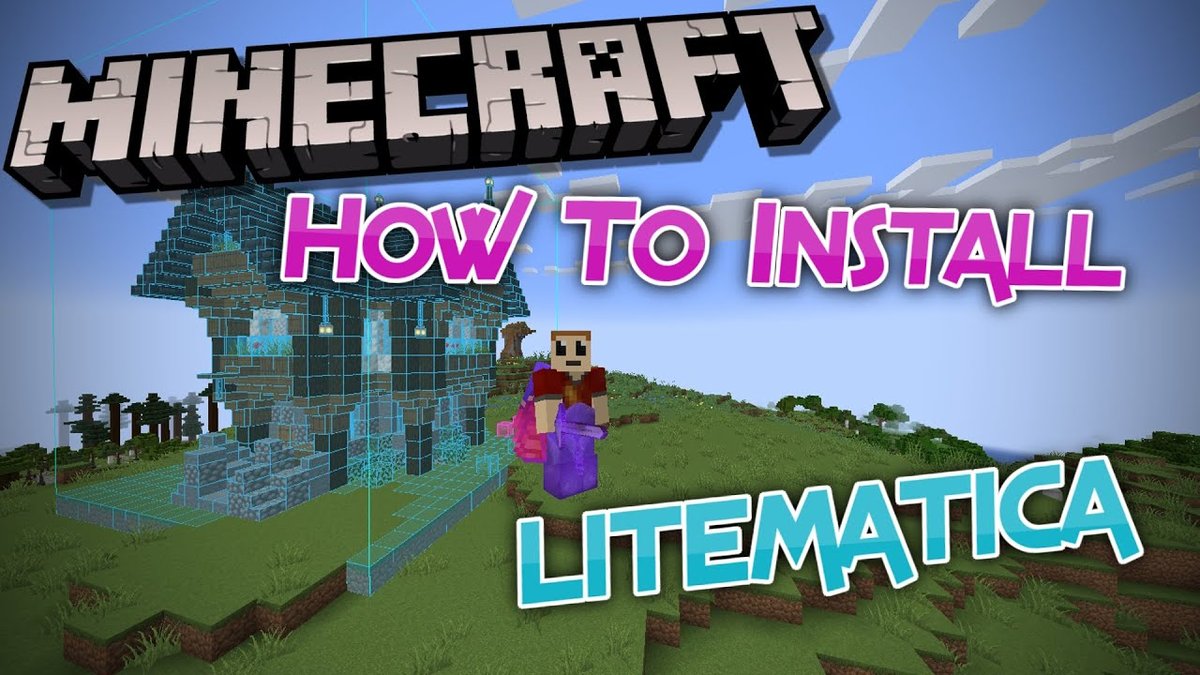
Imagine transforming your Minecraft landscape in mere moments, instantly materializing intricate builds, complex redstone contraptions, or entire city blocks with a single command. This isn't magic; it's the incredible power of Litematica's schematic pasting feature, a tool that revolutionizes how you build and iterate in Minecraft. By allowing you to place pre-designed structures directly into your world, Litematica eliminates repetitive manual labor, letting you focus on creativity and innovation.
Whether you're replicating a masterpiece, deploying a farm design across multiple worlds, or simply testing out a new build idea, understanding how to effectively paste schematics is a game-changer. This comprehensive guide will walk you through the entire process, from the fundamental requirements to advanced server-side considerations, ensuring you can seamlessly integrate your designs. If you're new to this powerful mod, we highly recommend you first Learn Litematica & Schematics to get a foundational understanding of what schematics are and how they work.
The Core Essentials: Preparing to Paste Your Litematica Schematic
Pasting a schematic isn't just about pressing a button; it involves a few critical prerequisites to ensure a smooth and successful operation. These steps are universal, whether you're building solo or on a server, and form the bedrock of any Litematica pasting endeavor. Getting these right will save you a lot of troubleshooting later on.
First and foremost, you must be in Creative Mode. Litematica's pasting functionality is designed for creative building and world manipulation, not survival resource management. This means you won't consume any items during the paste, and there are no limitations on the block types or states you can place.
Once in Creative, you need to engage the correct tool mode. Hold your configured Litematica tool item (usually a stick or similar item, configurable in Generic -> toolItem), then press Ctrl and scroll your mouse wheel until the tool HUD in the bottom left corner indicates "Paste schematic in world". Alternatively, you can access this mode through the Litematica main menu button. For a detailed walkthrough on setting up your tools and initial configurations, explore our guide on Installing & Setting Up Litematica.
Before you initiate the paste, make sure your tool HUD is visible (M + T to toggle the tool, M + R to toggle rendering) and displaying the name of the schematic placement you intend to paste. You'll see a light cyan outline in-world representing your placement. To select the correct placement, simply middle-click in-world while looking at it (within ~200 blocks), or select it from the "Schematic Placements" menu. With everything in place, use the executeOperation hotkey (default Litematica: execute schematic operation in controls) to start the magic.
Tailoring Your Paste: Understanding Options and Behaviors
Litematica offers a range of sophisticated options that dictate precisely how your schematic interacts with the existing world. These settings allow for fine-grained control, preventing accidental overwrites or ensuring specific integration patterns. Learning to leverage these behaviors is key to achieving your desired outcome without extra cleanup.
One of the most important settings is Block Replace Behavior, which you can toggle using Ctrl + M or by configuring Generic -> pasteReplaceBehavior. This option controls what blocks are replaced during the pasting process:
None: Litematica will only place blocks from your schematic where there is air in the world. Any existing non-air blocks will remain untouched.With non-air: Non-air blocks from your schematic will replace existing blocks in the world. However, if the schematic contains air blocks, those will not be placed, leaving existing blocks in the world intact.All: This is the most destructive option, as everything from the schematic (including air) is placed, completely replacing any existing blocks in the world that overlap.
For Minecraft versions 1.18.1 and above, Litematica introduces even more granular options for advanced users. These includecommandUseWorldEditfor integrating with World Edit commands,pasteIgnoreEntitiesto skip placing entities, andpasteIgnoreInventoriesto prevent restoring inventory contents from NBT data. Other options likepasteToMcFunctionFilesallow you to output paste commands to.mcfunctionfiles for later execution, andpasteUseFillCommandoptimizes server-side pasting by using/fillcommands for continuous regions. To truly Unleash Litematicas full potential, delving into these configuration options is highly recommended.
Saving Your Designs: The Nuances of Schematic Data
Before you paste, it's crucial to understand how schematics capture information, as this directly impacts what gets placed. The environment in which you save your schematic—single player versus multiplayer—makes a significant difference in the data included. When Create and manage Litematica schematics, keep these differences in mind.
A general rule of thumb when saving any schematic, especially one with complex mechanics, is to turn off redstone contraptions. This prevents issues like moving pistons or powered observers being captured in an unwanted state.
- Single Player Schematics: When you save a schematic in a single-player world, Litematica has direct access to the integrated server's world data. This means the schematic will meticulously include all NBT (Named Binary Tag) data for block entities (like chests with items, command blocks, furnaces), all entities (like armor stands, mobs), and even scheduled block ticks. This level of detail ensures a perfect replication.
- Multiplayer Schematics: Vanilla multiplayer servers typically do not send full NBT data to clients for performance and security reasons. Therefore, schematics saved from a server will usually have empty inventories for block entities, lack full NBT data for entities, and omit scheduled block ticks. To capture full NBT data in multiplayer, you typically need server-side modifications like the PCA (Protocol Compatibility Addon) extension for Fabric Carpet mod with
pcaSyncProtocolenabled, alongside the MasaGadget client mod. This crucial distinction impacts the fidelity of your pastes on servers.
Pasting in Action: Single Player vs. Server Environments
The act of pasting itself varies significantly between single-player and multiplayer settings, primarily due to how Minecraft worlds handle block placement and data. Understanding these differences is vital for a smooth operation. For a more hands-on guide to applying these concepts, refer to How to Use Litematica Schematics.
Single Player Pasting: Seamless Integration
In single-player worlds, Litematica's pasting operation happens directly within the integrated server's environment. This grants the mod full control, allowing it to:
- Restore all NBT data: Your chests will contain their items, command blocks will retain their commands, and signposts their text.
- Restore scheduled block ticks: Redstone contraptions, plant growth, and other time-sensitive mechanics behave as intended.
- Prevent block updates: This is critical for redstone. Litematica can often place blocks without triggering adjacent updates, ensuring complex contraptions don't break during placement.
In later Litematica versions (1.16.5-0.0.0-dev.20210917.192300+, 0.9.0+ for 1.17+), single-player pasting occurs in per-chunk pieces spread over multiple game ticks. This intelligent design is crucial for preventing those jarring lag spikes that could otherwise halt your game. Older versions, in contrast, would attempt to paste everything all at once.
Pasting on Servers: Command-Driven Placement
Pasting on multiplayer servers introduces a different approach: Litematica utilizes server commands like /setblock and /fill to place blocks. This method offers several advantages:
- No range limitations: Unlike manual placement, Litematica can place blocks far beyond your player's reach.
- Irrelevance of player looking direction: The commands handle precise placement regardless of where your character is looking.
- Ability to place non-item blocks: Commands can place blocks that don't have an item form, like command blocks or barriers.
Server-Specific Requirements: To paste on a server, you'll need the appropriate permissions. This typically means access to/setblockand/fillcommands, or for World Edit users (1.18.x+ versions),//pos1,//pos2, and//setcommands. The specific command names Litematica uses are configurable in theGenericcategory.
Command Rate Limiting: Since servers process commands, Litematica smartly rate-limits its operations. This is configurable viacommandLimitPerTick(the number of commands per task execution) andcommandTaskInterval(the interval in game ticks between tasks) in theGenericcategory, preventing your pasting from overloading the server.
Preventing Block Updates on Servers: This is a significant challenge for redstone builders. To prevent blocks from updating during server paste operations, you often need a server-side mod. The Carpet mod with thefillUpdatesrule set tofalse(/carpet fillUpdates false) is a popular solution. World Edit's paste mode can also prevent updates, though it generally involves more overhead.
Conquering Server NBT Data Restoration: An Advanced Challenge
Restoring full NBT data for block entities on a server is arguably the most complex aspect of Litematica pasting. Vanilla Minecraft's chat message limit (256 characters) often makes it impossible to send complete NBT data for complex items (like shulker boxes filled with enchanted gear) in a single /setblock command.
Litematica offers an ingenious solution for 1.16.5+ through the Place & Data Modify option in Generic -> pasteNbtRestoreBehavior. This method, while effective, has increased overhead:
- Places the block: Litematica first uses
/setblockto place the basic block. - Performs a creative Ctrl + pick block: It simulates this client-side action, which sends the full NBT data of the desired block to the server via an item packet.
- Temporarily places the "picked" block: This "picked" block (containing the full NBT data) is temporarily placed near your player.
- Copies NBT data: Litematica then uses
/data modifyto copy the NBT from the temporary block to the actual target block. - Removes the temporary block: The temporary block is cleaned up.
This multi-step process means each block entity requiring NBT restoration involves several commands, significantly increasing the overhead of the paste operation. It's recommended to enable this behavior only when absolutely necessary. Keep in mind that NBT restoration does not apply to regions placed usingpasteUseFillCommand.
For very large schematics with many inventory blocks, consider an optimization strategy: - Temporarily remove all "inventory blocks" (chests, furnaces, etc.) from your schematic using Litematica's Edit Schematic mode.
- Paste the main structure of the schematic.
- Reload the original schematic file.
- Set
pasteReplaceBehavior = Noneand disablepasteUseFillCommand. - Paste the schematic a second time with
pasteNbtRestoreBehavior = Place & Data Modifyenabled. This second pass will only place and restore NBT for the inventory blocks, as other blocks are already in place, making the process more efficient. Mastering these advanced techniques will certainly help you Unleash Litematicas full potential.
Behind the Scenes: How Litematica Handles Pasting Internally
For those curious about the mechanics, Litematica manages its pasting operations differently under the hood based on your environment. In single-player worlds, particularly in later versions (1.16.5-0.0.0-dev.20210917.192300+, 0.9.0+ for 1.17+), the pasting process occurs in per-chunk pieces spread over multiple game ticks. This intelligent design is crucial for preventing those jarring lag spikes that could otherwise halt your game. Older versions, in contrast, would attempt to paste everything all at once.
In multiplayer environments, regardless of the Litematica version, pasting always happens in per-chunk pieces. This operation is further rate-limited according to the commandLimitPerTick and commandTaskInterval settings you configure in the mod. This ensures that Litematica plays nicely with the server, distributing the workload and preventing it from being overwhelmed by a flood of commands.
Integrate Your Vision with Litematica
Pasting schematics with Litematica is more than just placing blocks; it's about seamlessly integrating your creative vision into any Minecraft world, whether you're building alone or collaborating on a server. From basic block replacement to intricate NBT data restoration, Litematica provides the tools to achieve your design goals with unparalleled precision and efficiency. By understanding these mechanics, you're not just building; you're automating the build process itself, freeing up your time to innovate and explore new architectural possibilities. Now that you've grasped the intricacies of pasting, you're well-equipped to use Litematica to its fullest potential.