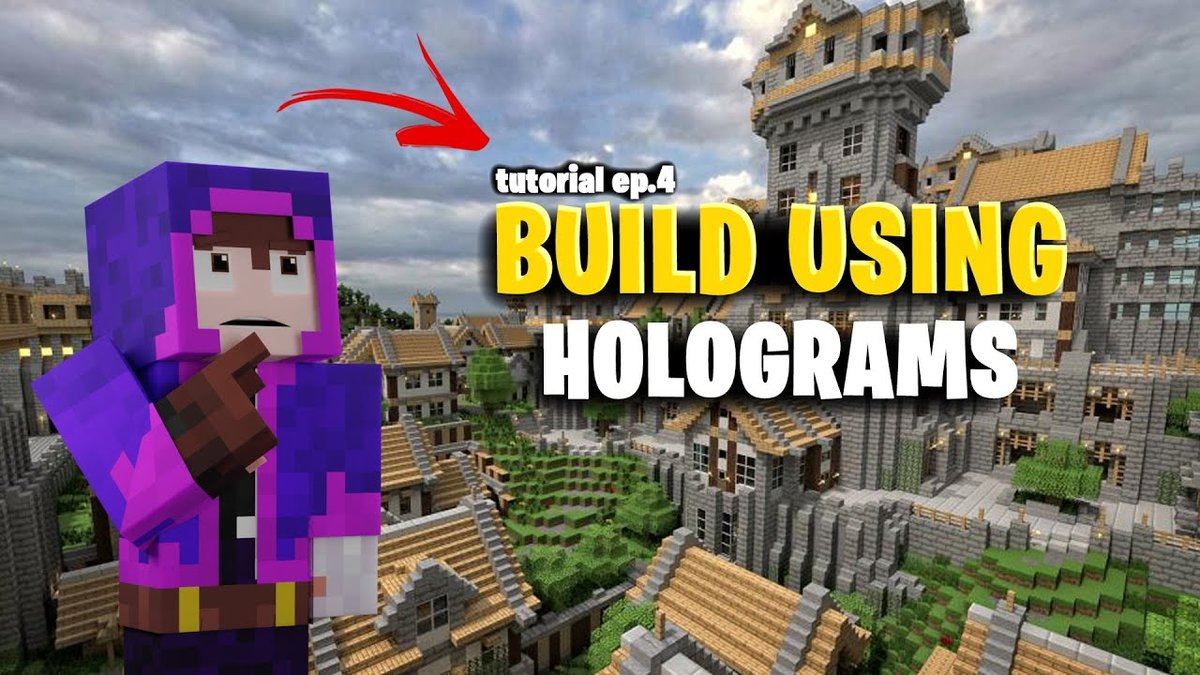
Imagine effortlessly replicating epic castles, intricate redstone contraptions, or even entire city blocks in Minecraft, all guided by a translucent ghost of your design. That's the magic Litematica brings to your building experience. This isn't just another mod; it's a game-changer for anyone serious about construction in Java Edition, transforming daunting projects into manageable, precise undertakings. If you've ever dreamt of perfecting a build or sharing your architectural masterpieces with the world, learning how to properly set up Litematica is your essential first step.
At a Glance: Your Litematica Journey Ahead
- What it is: Litematica is a Minecraft Java Edition mod that lets you create, load, and project schematic blueprints directly into your world.
- Why you need it: It simplifies complex builds, saves immense time, ensures precision, and allows for easy sharing of designs.
- Key Requirement: You'll need Minecraft Java Edition (1.14+) and a mod loader (Fabric or Forge), plus Fabric API if you choose Fabric.
- Installation: A few straightforward steps involving downloading JAR files and placing them in your
.minecraft/modsfolder. - Core Use: Load a schematic, position the ghost build, and then follow its guide block-by-block, or even paste it directly.
- Troubleshooting: Common issues often revolve around version compatibility or incorrect file placement – easy fixes once you know where to look.
Why Builders Swear by Litematica
Litematica isn't merely a utility; it's an extension of your creative mind within Minecraft. At its core, it's a mod that enhances your building capabilities by allowing you to create, load, and render schematic blueprints. These digital blueprints contain detailed block information and placement instructions, acting as an invisible hand guiding your every move.
Consider the sheer scale and complexity of some Minecraft builds. Without Litematica, replicating a structure often involves constantly switching between reference images, painstakingly counting blocks, and inevitably making errors. Litematica sweeps these frustrations aside, offering a suite of features that drastically refine your building workflow:
- Unmatched Precision: No more miscounting blocks or misplacing intricate components. Litematica's holographic projection shows you exactly where each block needs to go.
- Supercharged Efficiency: Cut down on build times dramatically. Following a visual guide is inherently faster than cross-referencing external designs.
- Flawless Planning: Plan your builds outside of your main world, refine them, and then bring a perfect blueprint into your survival or creative game.
- Community & Collaboration: Easily share your creations with others or load schematics from the vast Minecraft community, opening up a world of shared designs.
- Enhanced Visualization: Real-time ghost outlines and color-coded blocks provide immediate feedback, making even multi-layered edits a breeze.
This mod is more than just a convenience; it's a fundamental tool for achieving your most ambitious architectural visions in Minecraft.
Getting Ready: Prerequisites for a Smooth Setup
Before diving into the installation process, it's crucial to ensure your system is prepared. Think of this as laying the foundation before constructing a building—a solid base prevents future headaches. Missing any of these prerequisites is the most common reason for installation issues.
- Minecraft Java Edition (1.14 or Higher): This guide is specifically for the Java Edition. Ensure your game is updated to at least version 1.14, as Litematica relies on modern game features. If you don't have it, download and install it from the official Minecraft website and launch it at least once to generate necessary game files.
- Fabric Mod Loader OR Forge Mod Loader: Litematica doesn't work directly with vanilla Minecraft. It requires a "mod loader" to inject its code into the game. You'll need either Fabric or Forge. Choose one and stick with it. Fabric is generally preferred for newer utility mods like Litematica due to its lightweight nature and speed.
- Fabric API (IF Using Fabric Mod Loader): If you opt for Fabric, you'll also need the Fabric API. This is a core library that many Fabric mods, including Litematica, depend on to function correctly. It's essentially a toolkit for other mods.
- Latest Java Environment: Minecraft and its mods run on Java. Ensure you have the latest Java Runtime Environment (JRE) installed on your system. Outdated Java versions can lead to crashes or performance issues. You can usually download the latest JRE from Oracle's official website.
- Sufficient System Resources: While Litematica itself is relatively lightweight, running Minecraft with mods does add overhead. Make sure your computer meets or ideally exceeds Minecraft's recommended system requirements, especially concerning RAM.
- Adequate Storage and Backup: Ensure you have enough free storage space for the mod files. More importantly, always back up your Minecraft worlds before installing any new mods. While Litematica is stable, it's good practice to safeguard your progress against any unforeseen issues.
- Stable Internet Connection: You'll need this to download the various installers and mod files.
With these preparations in place, you're ready to proceed to the main event: installing Litematica.
The Playbook: Step-by-Step Litematica Installation
This section walks you through the precise steps to get Litematica up and running in your Minecraft world. Follow these instructions carefully to avoid common pitfalls.
Step 1: Install Minecraft Java Edition (If Not Already Done)
If you haven't already, download and install Minecraft Java Edition from the official website. It's crucial that you launch the game at least once and reach the main menu. This initial launch generates essential game files and folders, including the .minecraft directory where your mods will reside.
Step 2: Install Your Chosen Mod Loader (Fabric or Forge)
This is the bridge that allows Litematica to interact with Minecraft. You only need ONE of these.
Option A: Installing Fabric Mod Loader (Recommended for Litematica)
- Download the Fabric Installer: Head to the official Fabric website: https://fabricmc.net/use/.
- Run the Installer: Once downloaded, open the
.jarfile. A small window will appear. - Select Your Minecraft Version: From the dropdown menu, choose the exact Minecraft version you intend to play Litematica on (e.g., 1.20.1).
- Install: Click the "Install" button. Fabric will create a new profile in your Minecraft Launcher.
- Verify & Launch: Open your Minecraft Launcher. You should now see a new "Fabric Loader [Minecraft Version]" profile. Select it and click "Play" once. Let the game load to the main menu, then close it. This step ensures the Fabric environment is correctly initialized.
Option B: Installing Forge Mod Loader
- Download the Forge Installer: Visit the official Forge website. Navigate to the "Download Recommended" section for your desired Minecraft version.
- Run the Installer: Open the downloaded
.jarfile. - Select "Install Client": Ensure "Install Client" is selected.
- Install: Click "OK" to begin the installation.
- Verify & Launch: Open your Minecraft Launcher. A new "Forge [Minecraft Version]" profile should now be available. Select it, click "Play," and let the game load to the main menu before closing.
Step 3: Install Fabric API (IF You Chose Fabric)
If you went with Fabric in Step 2, this is mandatory. If you chose Forge, skip this step.
- Download Fabric API: Go to a trusted mod repository like CurseForge or Modrinth. Search for "Fabric API." Crucially, download the version that matches your Minecraft version.
- Locate Your
modsFolder: This is where all your mod.jarfiles will live.
- Windows: Press
Win + R, type%appdata%\.minecraft\mods, and press Enter. - Mac: Open Finder, press
Cmd + Shift + G, type~/Library/Application Support/minecraft/mods, and press Enter. - Linux: Open your file manager, navigate to
~/.minecraft/mods.
- Create
modsFolder (If Missing): If themodsfolder doesn't exist within your.minecraftdirectory, simply create a new folder and name itmods(all lowercase). - Place the Fabric API: Drag and drop the downloaded Fabric API
.jarfile directly into thismodsfolder.
Step 4: Download and Install Litematica
Now for the star of the show!
- Find Litematica: Head to a trusted mod hosting site like CurseForge or Modrinth. Search for "Litematica."
- Download Correct Version: This is critical.
- Ensure you download the version specifically for your chosen mod loader (Fabric or Forge).
- Ensure it matches your Minecraft version (e.g., Litematica for Fabric 1.20.1).
- The file will be a
.jarfile.
- Move Litematica to
modsFolder: Just like with Fabric API, drag the downloaded Litematica.jarfile into your.minecraft/modsfolder.
Step 5: Launch Minecraft with Litematica
The moment of truth!
- Open Minecraft Launcher: Launch the standard Minecraft Launcher application.
- Select Modded Profile: From the profile dropdown, select the Fabric or Forge profile you installed earlier.
- Hit "Play": Click the "Play" button and allow Minecraft to load. It might take a little longer than usual on the first run with mods.
- Verify Installation: Once the game is loaded:
- From the main menu, look for a "Mods" button (this is common for Fabric/Forge setups). Click it and confirm Litematica is listed.
- Alternatively, once you're in a world, press the default Litematica hotkey (
MorY– it varies slightly by version/configuration) to open its main menu. If it appears, you've succeeded!
Congratulations! You've successfully installed Litematica. Now, let's explore how to make it truly work for you.
Tailoring Your Tools: Configuration and Key Bindings
Litematica is incredibly powerful, and a big part of that power comes from its flexibility. Taking a few moments to configure its settings and key bindings will significantly enhance your building experience.
Accessing Litematica Settings
There are typically two ways to get into Litematica's configuration:
- In-Game Hotkey: The most common method is to press the default Litematica hotkey while in a world. This is usually
MorY. This opens the main Litematica menu. - Minecraft's Mod Menu: From the Minecraft main menu (or in-game by pressing
Esc), navigate to "Mods" (if you have one). Find "Litematica" in the list, select it, and then look for a "Config" or "Settings" button.
Key Configuration Areas
Once you're in the Litematica menu, you'll find various tabs or sections. Here's what to look for:
- General Settings:
- Schematic Loading Mode: Often "Quick" or "Lazy." "Quick" loads everything at once; "Lazy" loads chunks as you approach them, potentially saving resources for very large schematics.
- Render Distance: How far out Litematica renders the schematic outline. Balance this with performance.
- Show Overlay: Toggles the main schematic rendering on/off.
- Visuals:
- Color Settings: Customize the colors of different schematic elements (e.g., normal blocks, missing blocks, extra blocks). Making missing blocks a vibrant color can be very helpful.
- Opacity: Adjust how transparent the schematic ghost is. Find a balance where it's visible but doesn't obscure too much of your world.
- Line Thickness: Controls the thickness of the block outlines.
- Performance:
- VBOs (Vertex Buffer Objects): Enable this for better rendering performance, especially with large schematics.
- Chunk Loading Limits: Control how many schematic chunks Litematica processes simultaneously.
- Update Rate: How frequently Litematica refreshes the schematic view.
- Key Bindings: This is perhaps the most important area for customization. Minecraft's default key bindings (
Esc>Options>Controls) will have a section for "Litematica." Here you can: - Main Menu: Change
MorYif it conflicts with another mod or your personal preference. - Area Selection: Keys for defining the bounds of a schematic you want to save.
- Placement Mode Toggle: A key to switch between different placement modes (e.g.,
Shift + Placeis a common default for pasting). - Schematic Movement: Keys for precisely moving, rotating, and mirroring loaded schematics. For example,
Shift + Mouse Wheelis often used for fine-tuning vertical placement. - Transparency Toggle: A key to quickly adjust the schematic's transparency (
His a common default).
Experiment with these settings. A personalized setup will make Litematica feel like a natural extension of your building toolkit, allowing you to focus on creation rather than wrestling with controls.
Bringing Blueprints to Life: Using Litematica Effectively
With Litematica installed and configured, it's time to put it to work. The core loop involves creating, loading, positioning, and ultimately building from schematics.
1. Launching the Litematica Menu
As configured, press your designated key (default M or Y) to open the main Litematica interface. This central hub is where you'll manage everything.
2. Creating Your Own Schematic
Want to save a build you've made or design something to replicate later?
- Area Selection: Use Litematica's area selection tool. The default key combination for starting an area selection is often
M + Scroll Wheel Click(middle mouse button) to select points. Click one corner, then move to the opposite corner and click again. You'll see a wireframe box appear. - Refine Selection: In the Litematica menu, navigate to "Area Selections" or a similar tab. Here you can precisely adjust the coordinates of your selection box if needed.
- Save Schematic: With your area selected, go back to the main Litematica menu, find the "Schematic Save" (or "Save") option. Give your schematic a descriptive name, and it will be saved as a
.litematicfile in yourschematicsfolder (inside.minecraft).
3. Loading a Schematic
Bringing a design into your world is straightforward:
- Open Litematica Menu: Press
MorY. - Navigate to Schematics: Look for a "Schematic Manager" or "Load Schematics" tab.
- Choose Your Schematic: Browse through your
.litematicfiles. Select the one you want and click "Load Schematic." - Visualize: The schematic will appear as a translucent, ghost-like outline in your world, ready for positioning.
4. Positioning and Viewing Your Schematic
A loaded schematic will likely not appear exactly where you want it. This is where precise manipulation comes in:
- Free Placement Toggle: Often, pressing
G(or a similar key) toggles free placement mode, allowing you to move the schematic independently of your player position. - Movement Controls:
- Use typical movement keys (
WASD) combined with a modifier (e.g.,CtrlorAlt) to move the schematic horizontally. Shift + Scroll Wheelis a common binding to adjust the schematic's vertical (Y) position in fine increments.- Rotation and Mirroring: Look for keys in the "Controls" settings for rotating (e.g.,
M + R) and mirroring (e.g.,M + F) the schematic along different axes. - Transparency: Use your assigned transparency toggle key (often
H) to cycle through different opacities, making it easier to see your world or the schematic. - Render Layers: For complex builds, Litematica allows you to view the schematic layer by layer, which is incredibly useful. Explore options like "Render Layers" or "Sub-Regions" in the main menu.
5. Pasting the Schematic
When you're ready to commit the schematic to your world, Litematica offers advanced pasting features. While building block-by-block manually is the primary use case, direct pasting can save massive amounts of time in creative mode. For a deeper dive into the nuances of automatic placement and potential pitfalls, you'll find a dedicated guide on how to paste Litematica schematics. This will cover the required setup and commands to enable this powerful functionality.
6. Block Highlighting and Transparency
Litematica's visual feedback is one of its strongest features. In the settings, you can define how blocks are displayed:
- Missing Blocks: Highlight blocks that are supposed to be there but aren't yet in your world.
- Extra Blocks: Highlight blocks that are in your world but shouldn't be part of the schematic.
- Wrong Blocks: Highlight blocks that are the wrong type compared to the schematic.
These visual cues are invaluable for quickly identifying and correcting errors as you build.
7. Managing Your Schematics
The "Schematic Manager" section of the Litematica menu allows you to:
- Browse: See all your saved
.litematicfiles. - Rename: Give your schematics clearer names.
- Delete: Remove old or unwanted schematics.
- Reload: Refresh the list if you've manually added files to the
schematicsfolder.
By mastering these core functionalities, you'll unlock the full potential of Litematica, transforming your Minecraft building process from a tedious chore into an efficient and enjoyable creative endeavor.
Clearing Hurdles: Troubleshooting Common Litematica Issues
Even with the best instructions, mods can sometimes be finicky. Here's a rundown of common problems you might encounter with Litematica and how to solve them.
Problem 1: Litematica Isn't Showing Up in Game
- Symptoms: No "Mods" button, Litematica not listed,
MorYkey does nothing. - Solutions:
- Wrong Profile: Ensure you've selected the correct Fabric or Forge profile in the Minecraft Launcher before hitting "Play."
- Incorrect
modsFolder: Double-check that both the Litematica.jarfile and (if using Fabric) the Fabric API.jarfile are directly inside your.minecraft/modsfolder, not in subfolders. - Minecraft Version Mismatch: Verify that Litematica, your mod loader (Fabric/Forge), and Minecraft itself are all for the exact same version (e.g., 1.20.1 Fabric, Litematica 1.20.1).
- Corrupted Download: Re-download the
.jarfiles from trusted sources like CurseForge or Modrinth.
Problem 2: Performance Issues or Lag
- Symptoms: Choppy gameplay, low FPS, freezing when loading large schematics.
- Solutions:
- Allocate More RAM: In your Minecraft Launcher, go to "Installations," hover over your Fabric/Forge profile, click the three dots, then "Edit." Under "More Options," adjust the "JVM Arguments" to allocate more RAM (e.g.,
-Xmx4Gfor 4 GB). - Optimize Minecraft Settings: Lower your in-game render distance, graphics settings (Fast Graphics, minimal particles), and disable VSync if experiencing screen tearing.
- Litematica Settings: In Litematica's menu (Performance tab), enable VBOs, reduce the "Render Distance" for schematics, and consider using "Lazy" schematic loading mode for very large builds.
- Update Graphics Drivers: Ensure your graphics card drivers are up to date.
- System Resources: Verify your computer meets the recommended specs for Minecraft plus mod overhead.
Problem 3: Game Crashing on Startup or When Loading a World
- Symptoms: Minecraft crashes to desktop, an error message appears (e.g., "Exit Code 1").
- Solutions:
- Check Crash Reports: After a crash, look in your
.minecraft/crash-reportsfolder. Open the latest.txtfile; it often contains clues about which mod caused the crash. - Java Version: Ensure your Java Runtime Environment (JRE) is up-to-date.
- Mod Conflicts: Temporarily remove all other mods from your
modsfolder except Fabric API (if applicable) and Litematica. If the game launches, another mod is causing a conflict. Re-add them one by one to identify the culprit. - Incompatible Mod Loader: Ensure you downloaded Litematica for the correct mod loader (Fabric Litematica for Fabric Loader, Forge Litematica for Forge Loader). They are not interchangeable.
- Reinstall Mod Loader: If unsure, completely uninstall and reinstall your chosen mod loader (Fabric or Forge).
Problem 4: Schematic Not Rendering Correctly or Display Issues
- Symptoms: Schematic is invisible, distorted, flickers, or blocks look wrong.
- Solutions:
- Litematica Visibility: Ensure the schematic overlay is enabled in Litematica's general settings.
- Graphics Settings: Experiment with different in-game graphics settings, particularly "Use VSync" or "Alternate Blocks."
- Shader/Resource Pack Conflicts: Temporarily disable any shaders or resource packs you're using. Some can interfere with Litematica's rendering.
- Reinstall Litematica: A fresh download and placement of the Litematica
.jarfile can fix corrupted files.
By systematically working through these solutions, you can resolve most common Litematica issues and get back to building. Remember, the Minecraft modding community is vast; don't hesitate to consult official Litematica documentation or community forums for more specific help if needed.
Building a Legacy: Mastering Litematica for Your Minecraft Adventures
You've now successfully navigated the journey of installing and setting up Litematica. This powerful mod is truly a cornerstone for any serious Minecraft builder, transforming ambitious projects into enjoyable, precise endeavors. From meticulously planning your next megastructure to effortlessly replicating intricate redstone designs, Litematica elevates your creative potential, making the previously daunting feel entirely achievable.
The key to a smooth experience, as we've explored, lies in meticulous attention to detail during installation: ensuring compatibility between Minecraft, your chosen mod loader (Fabric or Forge), and Litematica itself. Once these foundational pieces are in place, the real fun begins. Dive into its settings, customize your key bindings, and experiment with its various tools—from area selection to precise schematic positioning.
Remember, the initial setup is just the beginning. The more you explore Litematica's features, customize its visual cues, and utilize its practical functions for loading and managing schematics, the more seamlessly it will integrate into your building workflow. Don't shy away from troubleshooting; most issues are minor and easily resolved with the steps we've outlined.
With Litematica at your command, your imagination is truly the only limit. Go forth, build bigger, build better, and share your creations with confidence!