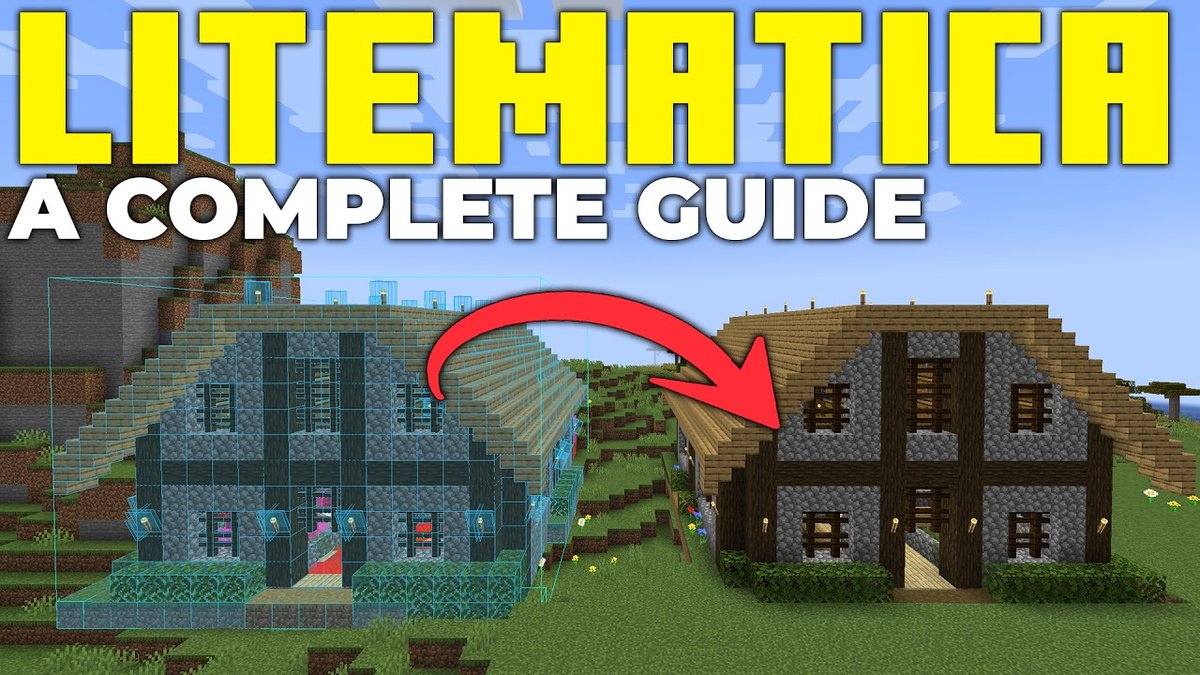
Imagine crafting the Minecraft world you’ve always dreamed of—not block by laborious block, but with the precision of a master architect, seeing your vision materialize before you like a ghostly blueprint. That's the magic of Litematica. This guide dives deep into Creating & Managing Litematica Schematics for all your Minecraft building and editing needs, transforming you from a casual builder into a highly efficient constructor.
Litematica is a game-changer, turning tedious manual builds into guided, satisfying projects. It renders a holographic projection of any structure directly in your Minecraft world, allowing you to follow its outline block by block. But Litematica isn't just for building from scratch; it's a powerful editing suite that lets you modify existing schematics with surgical precision, saving you countless hours of rebuilding.
At a Glance: Your Litematica Blueprint
- Setup Schematics: Download schematic files (.litematic) and place them in your Minecraft
/schematicsdirectory. - Load & Position: Use the 'M' menu to load a schematic, then hold a stick (your default tool) and use
Ctrl+ scroll to enter placement mode, andAlt+ scroll to precisely align the hologram. - Build Smart: Reference the in-game Material List to track needed, missing, and available blocks. Litematica highlights incorrect placements in red.
- Edit with Power: Switch to "Edit Schematic mode" (M menu or
Ctrl+ scroll with tool) to modify loaded schematics directly in your world. - Master Operations: Learn hotkeys for replacing all identical blocks, adding/removing lines, filling air, and handling complex block states with stored preferences.
- Save Your Work: Remember to save edited schematics via the "Loaded Schematics" menu; consider saving a new version to avoid overwriting your original.
Litematica Essentials: Your Foundation for Efficiency
Before we dive into the nitty-gritty, let’s quickly establish what Litematica is and why it's become an indispensable tool for serious Minecraft builders. Litematica is a client-side mod, meaning it runs on your computer and enhances your gameplay without affecting the server for others (unless they also use it for shared projects). It doesn't auto-build for you; instead, it provides a dynamic, interactive guide, making complex builds manageable and error-free. You'll need the Litematica mod properly installed in your Minecraft client to begin.
Getting Started: Importing and Loading Your First Schematic
Your journey with Litematica begins with a schematic file—a digital blueprint of your desired structure. These files typically have a .litematic extension.
1. Obtaining Your Blueprints
You can generate schematics in various ways. For instance, if you're aiming to create intricate map art, you might use an online map art creator to generate the pixel-perfect schematic. Alternatively, you could create a structure in creative mode, save it using Litematica’s own "Save Schematic" feature, or download one from a community sharing site.
2. Storing Your Schematics: The /schematics Directory
Once you have your .litematic file, it needs a home. Navigate to your Minecraft installation's /schematics directory. If you're unsure where this is, a quick trick is to go to "Resource Packs..." -> "Open Pack Folder" in-game, then simply navigate up one level. Place all your .litematic files directly into this /schematics folder.
3. Loading In-Game: Bringing the Hologram to Life
With your schematic files in place, launch Minecraft and load into your world.
- Press 'M' to open the Litematica main menu.
- Go to "Load Schematics."
- Select your desired schematic from the list and click "Load Schematic."
At this point, you might not immediately see a hologram. Don't worry! This is normal. Litematica has loaded the data but hasn't created a visible "placement" yet.
4. Creating and Configuring Your Placement
If no hologram appears:
- From the Litematica main menu ('M'), go to "Loaded Schematics."
- You'll see your loaded schematic listed. Select it.
- Click "Create placement."
Now, you should see a translucent, ghostly projection of your structure in the world. This is your Litematica hologram, ready for action!
Precision Placement: Aligning Your Hologram
The loaded schematic likely won't be in the exact spot you want it. This is where Litematica's intuitive placement tools come in handy, allowing you to move, rotate, and mirror your hologram with ease.
Your Go-To Tool: The Humble Stick
Litematica defaults to using a stick in your main hand as its primary tool for placement and editing. While you can configure this to other items, the stick is universally accessible and highly recommended.
Entering Schematic Placement Mode
- Hold a stick in your main hand.
- Hold down
Ctrl(Control key) and scroll your mouse wheel. You'll notice a HUD element indicating you've entered "schematic placement mode." This mode allows you to manipulate the hologram without affecting the world itself.
Aligning with Surgical Precision
Once in placement mode:
- Move Along Facing Axis: Hold
Alt(Alt key) and scroll your mouse wheel. The hologram will move along the axis you're currently facing (horizontal or vertical). This is incredibly useful for fine-tuning positioning. - Move Perpendicular to Facing Axis: Hold
Shift+Altand scroll to move the hologram perpendicular to your facing direction. - Move on X/Y/Z Axis: Litematica offers hotkeys for moving along specific X, Y, or Z axes. These can be configured in the hotkey menu, but
Alt+ scroll is often sufficient for most alignments. - Rotate: Hold
Altand middle-click (scroll wheel click) to rotate the schematic around its origin point. - Mirror: Hold
Shift+Altand middle-click to mirror the schematic along an axis.
Take your time to align the hologram perfectly. Precision here saves headaches later.
Initializing Maps (for Map Art Builders)
If you're building map art, remember a crucial detail: Minecraft maps don't center on you. They display the specific grid square they are in upon first use.
- Acquire a map (craft it or use
/give <player_name> minecraft:map). - Stand in the exact desired corner of your map art area.
- Right-click with the map in hand to initialize it. This sets the map's grid reference. Then you can align your schematic to this specific map area.
Building with Guidance: The Litematica Workflow
With your schematic perfectly aligned, it's time to build. Litematica guides you every step of the way, helping you gather materials and avoid mistakes.
Material List: Your Project Inventory
Before you start placing blocks, check your material needs:
- Press 'M' to open the Litematica menu.
- Navigate to "Schematic Placements."
- Select "Configure" for your active schematic.
- Click "Material List."
This table is your best friend. It provides three critical columns:
- Total: The total number of a specific block type required for the entire schematic.
- Missing: The number of blocks of that type still needed to complete the schematic.
- Available: The number of blocks of that type you currently have in your inventory.
Keep this list open or refer to it often, especially when sourcing materials.
The Build Process: Following the Ghostly Guide
- Place Blocks: Simply start placing blocks according to the holographic guide. Each block in the hologram represents where a real block should go.
- Error Detection: If you place a block incorrectly (wrong type, wrong location, wrong orientation), Litematica will highlight it in red. This immediate feedback loop is invaluable for preventing errors from compounding.
- Validator: Litematica's internal validator constantly checks your progress, ensuring every block is placed correctly.
This guided building experience is where Litematica truly shines, especially for large, intricate, or repetitive structures.
Map Updates and Display (Optional: for Map Art)
For those building map art, remember to periodically move around the undrawn areas of your map with it in hand to update its display. Once your map art is complete and you're happy with its appearance:
- Frame it: Place an item frame on a wall and right-click with the map to display your artwork. Use a glow item frame for enhanced illumination.
- Lock it: To prevent future changes to the area from affecting your map art, place a glass pane and your map in a cartography table. This locks the map's state permanently.
The Power to Modify: Litematica's Edit Schematic Mode
Litematica isn't just for following blueprints; it's also a robust tool for modifying them. Whether you want to tweak a downloaded schematic, fix a mistake in your own design, or reuse a base with slight variations, "Edit Schematic mode" (known as "Schematic Rebuild mode" in older versions <=1.17.0) is your solution.
Activating and Deactivating Edit Mode
- Via Menu: Press 'M' to open the Litematica main menu, then select "Edit Schematic mode."
- Via Hotkey: Hold your tool item (the stick) and
Ctrl+ scroll your mouse wheel until the HUD indicates you're in "Edit Schematic mode."
Crucial Note: Always remember to exit Edit Schematic mode when you're finished. If you don't, any block you place or break that intersects with the active schematic will unintentionally modify it, leading to frustrating surprises.
Mastering Edit Operations: Surgical Precision for Your Builds
Once in Edit Schematic mode, you gain access to a suite of powerful hotkey-driven operations. These operations affect the loaded schematic's data, not the world itself.
First Step: Set up dedicated hotkeys for these operations in the Litematica controls menu. This will significantly speed up your workflow.
1. Replace All Identical Blocks
- Hotkey: Assign
schematicRebuildReplaceAll. - How it Works: Hold the assigned hotkey. Right-click the block in the schematic that you want to replace. Simultaneously, hold the new block you want to use in your main hand. Litematica will replace every instance of the original block type in the schematic with your new block.
- Example: Replace all Stone blocks in your schematic with Deepslate.
2. Remove All Except One Block
- Hotkey: Assign
schematicRebuildBreakAllExcept. - How it Works: Hold the hotkey. Punch (left-click) the block in the schematic that you wish to keep. All other blocks of the same type will be removed from the schematic.
- Example: You have a schematic with a complex pattern of different colored Terracotta. You want to remove all the Red Terracotta, except for a single specific block you punched, leaving the other Terracotta colors untouched.
3. Add/Remove Individual Blocks
- Remove: Punch (left-click) a block in the schematic to remove it.
- Add: Place a new block against an existing block in the schematic to add it. This acts just like normal block placement but modifies the schematic, not the world.
4. Change/Remove Blocks in Lines/Rows
These operations allow for targeted modifications along an axis. They use a 5-way overlay to indicate the direction of effect (North, East, South, West, or Up/Down).
- Change (Replace Direction):
- Hotkey: Assign
schematicRebuildReplaceDirection. - How it Works: Hold the hotkey, then right-click a block in the schematic. The overlay will appear. While holding your new block in hand, use your scroll wheel to select a direction. The original block and all identical blocks in that chosen direction will be replaced.
- Remove (Break/Place Direction):
- Hotkey: Assign
schematicRebuildBreakPlaceDirection. - How it Works: Hold the hotkey. Punch (remove) or place (add) a block while selecting a direction with your scroll wheel. The action will apply to all identical blocks in that direction.
- Example: You have a long corridor of Oak Planks in your schematic. Using
schematicRebuildReplaceDirection, you can quickly change that entire row to Spruce Planks.
5. Remove All Identical Blocks
- Hotkey: Assign
schematicRebuildBreakPlaceAll. - How it Works: Hold the hotkey. Punch (left-click) one block of the type you want to completely remove from the schematic. All instances of that block type will vanish.
- Example: You want to clear all the grass blocks from your schematic. Punch one grass block while holding the hotkey, and they all disappear.
6. Fill Air Spaces
- Hotkey: Also uses
schematicRebuildBreakPlaceAll. - How it Works: Hold the hotkey. While holding a new block, place it against an existing schematic block where you want to fill an air gap. All air blocks that are "connected" to that placement within the schematic's volume will be filled with the new block.
- Example: You have an empty room in your schematic. Hold Stone in your hand, activate the hotkey, and place it against one wall. The entire air volume of the room will fill with stone.
Handling Complex Block States in Editing
Minecraft blocks are more than just their type; they have "states" (e.g., a trapdoor can be open or closed, a slab can be top or bottom, a fence can connect in different ways). When replacing blocks, Litematica tries to match the new block's state based on where you click, similar to vanilla placement. However, for truly complex states, you need a smarter approach.
Storing Block States for Precision
- Place in World: First, place the desired block in your actual Minecraft world in the exact state you want (e.g., an open Birch trapdoor facing north, or a waterlogged stair).
- Store State: While in Edit Schematic mode, look directly at that block in the world. Hold
Altand middle-click (default hotkey). This action "stores" that block's precise state in Litematica's memory. - Apply Stored State: Now, with an empty main hand, perform any of the edit operations (e.g.,
schematicRebuildReplaceAll). The operations will use the currently stored block state, whose name will be visible on your tool HUD.
- Example: You want to replace all normal Oak doors in your schematic with open Spruce doors. First, place an open Spruce door in the world.
Alt+ middle-click it. Then, with an empty hand, activateschematicRebuildReplaceAlland right-click an Oak door in your schematic. All Oak doors will become open Spruce doors.
Saving Your Edits & Managing Changes
Remember, schematic edits only affect the loaded copy in your game, not the original file until you explicitly save.
Saving Your Masterpiece
- For recent Litematica versions (1.16.5+, 1.12.2), you'll see an indicator for unsaved schematics in the "Loaded Schematics" menu.
- To save, go to the "Loaded Schematics" list, select your edited schematic, and click the "Save to file" button.
- Important: While newer versions are more stable, it's often a good practice to save your edited schematic under a new filename (e.g., "my_build_V2.litematic") rather than overriding the original, especially if you're working on a crucial project. This guards against potential corruption bugs, though these are rarer in current versions.
Reverting Changes
Made a mistake you can't undo? No problem.
- From the "Loaded Schematics" list, simply click the "Reload" button next to your schematic. This will revert all changes and load the schematic from its last saved state.
Targeted Edits with Render Layers
For large or multi-layered schematics, editing the entire thing at once can be overwhelming. Litematica's "Render Layers" feature helps:
- Use Render Layers to hide specific parts of the schematic, limiting the visible range of blocks.
- When performing edit operations, Litematica will only modify the blocks that are currently visible within the active render layers. This provides a surgical level of control.
A Glimpse into the Future: Fuzzy Replace
The Litematica developer has plans for a "fuzzy replace" option. Currently, block replacement always uses the exact full block state. Fuzzy replace would allow you to change a block's type (e.g., all Oak stairs to Birch stairs) while preserving properties like their orientation (upside down, facing North, etc.). This feature will further streamline complex edits when it's implemented.
Troubleshooting Common Litematica Hurdles
Even with Litematica, you might hit a snag now and then. Here are quick fixes for common issues:
- Hologram Not Showing Up:
- Did you "Create placement" from the "Loaded Schematics" menu?
- Is the schematic placed far away? Check the placement coordinates (M -> Schematic Placements -> Configure -> Position). Teleport to those coordinates.
- Are Litematica's rendering settings enabled? (M -> Generic -> Renderings -> Schematic rendering enabled).
- Edit Operations Not Working:
- Are you definitely in "Edit Schematic mode"? Check your HUD.
- Do you have the correct tool item (stick) in your main hand?
- Are your hotkeys correctly assigned and being held down when you perform the action?
- Are you looking at the schematic's blocks, not world blocks?
- Accidentally Edited My Schematic:
- You likely forgot to exit "Edit Schematic mode." Immediately go to the "Loaded Schematics" menu and click "Reload" to revert. Next time, always exit the mode when done.
- Litematica Not Loading/Crashing:
- Ensure your Litematica mod version matches your Minecraft version.
- Check for conflicting mods. Try running Litematica with only Fabric API (if applicable) and other core dependencies.
- Make sure you have the correct Java version for your Minecraft installation.
Best Practices for Seamless Schematic Management
To truly master Litematica, adopt these habits:
- Organize Your
/schematicsFolder: Create subfolders for different projects, themes, or types of builds (e.g., "My Map Arts," "Farms," "Houses"). A cluttered folder is a headache. - Name Schematics Clearly: Use descriptive names that include version numbers (e.g., "LargeFarm_v1.litematic," "StarterHouse_oak_v2.litematic").
- Backup Your Schematics: Regularly copy your entire
/schematicsfolder to an external drive or cloud storage. Losing hours of design work is heartbreaking. - Practice Hotkeys: The more fluid you are with Litematica's hotkeys, the faster and more intuitive your building and editing will become. Spend time in a creative test world just practicing the commands.
- Understand Block States: Delve into how Minecraft handles block states. This knowledge will make precise editing much easier, especially when using the "store block state" feature.
- Start Simple: Don't begin with a mega-build. Practice creating, loading, positioning, and then editing small structures. This builds muscle memory and confidence.
- Explore All Features: Litematica has many more advanced features beyond what we've covered, like different render modes, regions, and layer manipulation. Dive into the mod's official documentation or community guides once you're comfortable with the basics. If you're looking for guidance on using schematic files in the world, you might also find this article on how to paste Litematica schematics helpful for related actions.
Your Next Build: Taking Control with Litematica
You now possess the knowledge to not only bring complex structures into your Minecraft world but also to modify them with unparalleled precision. Creating & Managing Litematica Schematics isn't just about saving time; it's about unlocking a new level of creative freedom and efficiency in your building projects. From designing intricate map art to iterating on complex redstone contraptions, Litematica empowers you to build smarter, faster, and with fewer mistakes. Go forth, architect, and transform your Minecraft world with the power of the blueprint!